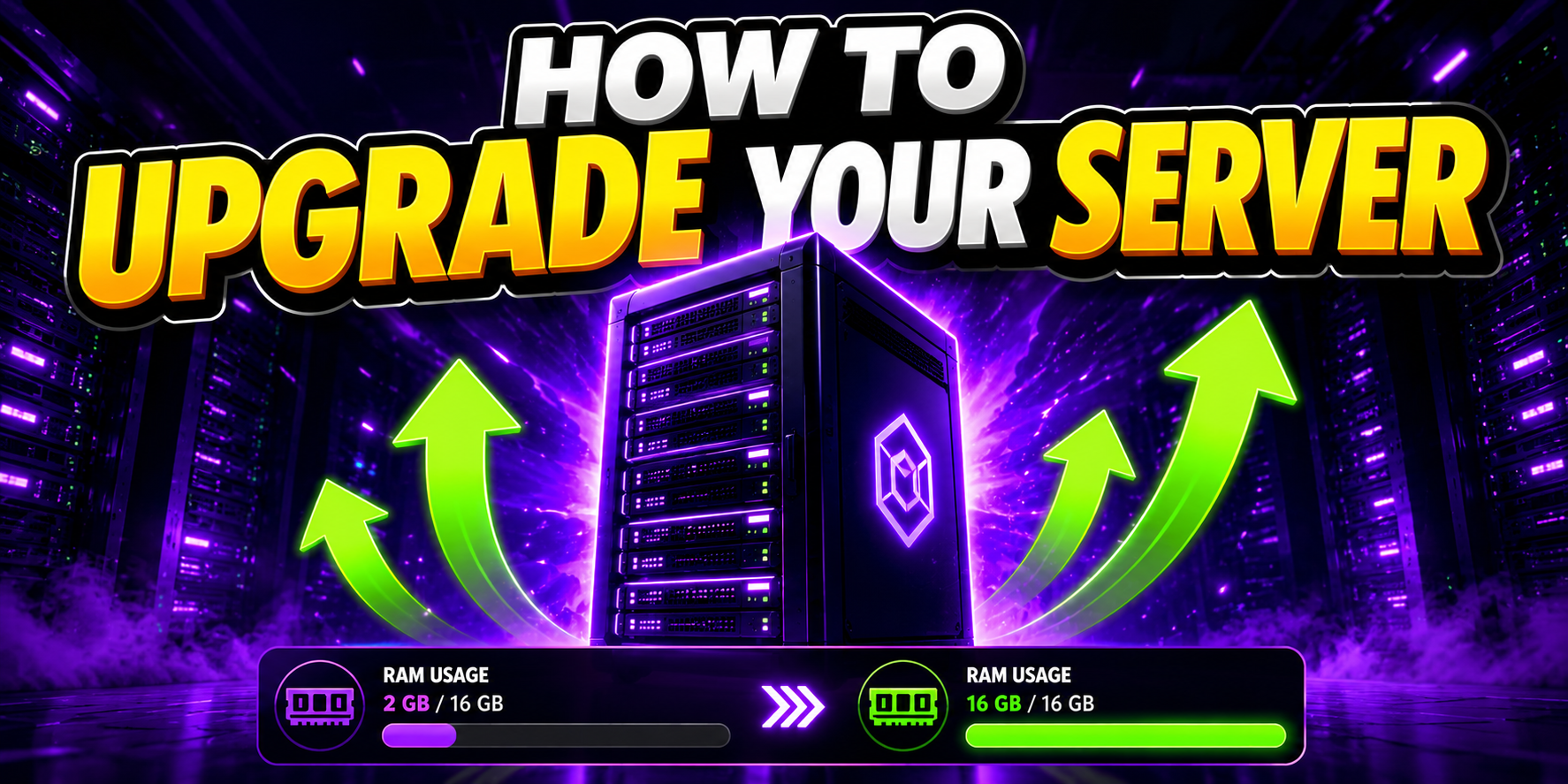
Running low on RAM or storage? SkailarHost lets you scale your server resources up instantly. No ticket, no migration, no downtime. This guide walks you through every step from your dashboard to checkout.
Dashboard → find your server → click Upgrade → choose extra RAM (+1 GB steps) and/or extra Disk (+10 GB steps) → click Continue → complete checkout → resources are applied automatically.
Pricing
Log in to your SkailarHost account and head to your Dashboard (or Profile → My Servers). You will see a list of all servers on your account with their current RAM, disk, and status.
Find the server you want to scale and click the Upgrade button. A modal will open showing your current resources:
What you'll see:
Use the + button under the RAM section to add gigabytes in 1 GB increments. The modal shows you the new total (e.g. "5 GB") and the price change per month before you commit.
You can add RAM only, disk only, or both at the same time. Note that the price difference updates live so you always know what you're paying before confirming.
Use the + button under the Storage section to add space in 10 GB increments. Like RAM, the running total and cost difference are shown in real time.
At the bottom of the modal you will see a summary badge showing the total monthly price change. Once you're happy with your selection, click Continue.
Example summary:
You will be redirected to a secure Stripe checkout page. Enter your card details (or use a saved payment method) and confirm payment.
After a successful payment, the new RAM and disk values are applied to your server automatically with no support ticket needed. You may need to restart your server from the panel for the new RAM allocation to take full effect.
Reach us via live chat, email, or Discord and we'll sort it out for you quickly.
Head to your dashboard and hit Upgrade on any server, or deploy a new one with the resources you need from the start: