
SFTP is the fastest way to upload, download, and manage files on your SkailarHost server. This guide shows exactly where to find your host, port, username, and password in the panel, then how to connect using popular clients (FileZilla/WinSCP) or the terminal.
Open your SkailarHost panel → find SFTP Details (on the Dashboard or Settings tab) → copy Server Address, Port, and Username → your SFTP password is the same as your panel password → connect with an SFTP client.
In your SkailarHost server panel, you can find your SFTP connection info on the Dashboard or the Settings tab. Look for a section labeled SFTP Details.
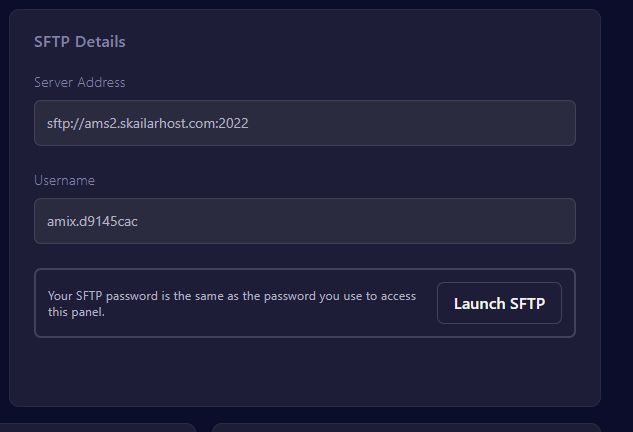
You’ll usually see:
sftp://ams2.skailarhost.com:2022)2022 on many panels)FileZilla is a popular free SFTP client. To connect, open FileZilla and enter:
FileZilla fields:
Host: sftp://YOUR_SERVER_ADDRESS
Username: your SFTP username
Password: your panel password
Port: 2022 (or whatever your panel shows)

The first time you connect, you may see a host key prompt. That’s normal for SFTP/SSH. Verify it looks reasonable, then click OK or Trust.
WinSCP is great on Windows and makes permissions + transfers very straightforward. Create a new site and set:
WinSCP settings:
sftp:// is fine)2022 (or panel value)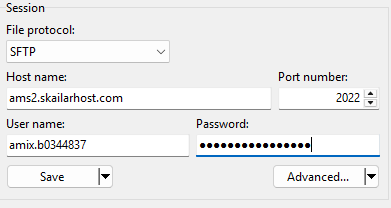
After connecting, you’ll see your server’s directory tree. Most games and apps keep important files under a main folder (often something like /home/container depending on setup). If you’re not sure which folder to use, check your server’s panel file manager and match the paths.
2022 by default. Some hosts may show a different port. Always use the port shown in your panel.If you’re stuck, send us a screenshot of the exact error and we’ll guide you to the fix quickly.
SkailarHost servers are built for smooth file transfers, fast NVMe storage, and stable performance - so your uploads finish quickly and your server stays responsive.