
Mods are how you turn an ARK Survival Ascended server into a unique experience - QoL changes, balance tweaks, new dinos, and custom content. In this guide you’ll learn how to install mods on an ARK Ascended server, add multiple mods safely, and fix the most common issues (crashes, infinite loading, or the server not showing up).
Stop the server → add your mod IDs (comma separated) in your startup "MODS" field → start once and wait for the first boot to download mods → verify in logs → only add/remove mods one at a time. For a stable base, host on ARK Survival Ascended Hosting with NVMe + enough RAM.
ARK Survival Ascended mods are referenced by an ID. You’ll copy the ID from the mod’s page (where you subscribe/download it). You’ll paste those IDs into your server configuration.
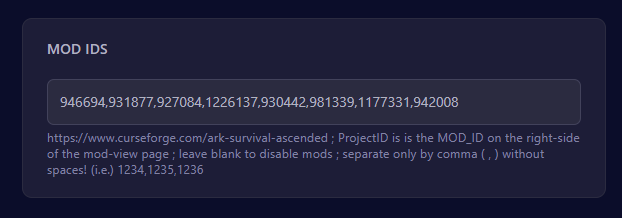
Example mod IDs list:
123456
789012
345678
In your game panel, stop the server, then open your startup area (where mods are configured). You’ll usually have a field for mod IDs.
Add multiple mods in one line, separated with commas:
123456,789012,345678

-mods= followed by your IDs.The first time you start after adding mods, the server must download and mount them. This can take several minutes depending on mod size and count.
Don’t spam restart during mod downloads. If you interrupt the first boot, you can corrupt the mod cache and cause crashes on the next start.
Once the server starts, check your console logs for mod download and mounting messages. If players join and are prompted to download the same mods, you’re good.
If you want a stable baseline before you add a big mod list, set your core configuration first. Here’s a good next step: read best ARK Survival Ascended server settings.
Add mods in batches: 2–3 at a time, restart, test, then continue. This makes it easy to spot the exact mod causing issues.
Do players need the same mods?
Yes - clients will download required mods when joining the server.
How many mods can an ARK Ascended server run?
It depends on mod size and RAM. If you plan heavy modding, size your server properly (see our RAM guide).
Should I remove mods on a live server?
Only with a backup. Removing some mods can break items/structures that exist in the world.
Installing ARK Survival Ascended mods is simple once you know the workflow: add mod IDs, let the first boot finish, and test changes step-by-step. If you want a stable, mod-friendly setup with NVMe and low-latency regions, start here: ARK Survival Ascended Server Hosting.