
If you can’t find your ARK Survival Ascended server in the list, you’re not alone - 90% of the time it’s just the wrong tab, the wrong server name, or a missing filter. This guide follows the exact steps we send to customers, so confirms you join fast on PC and console.
Make sure your server is Powered On → open ARK → go to the server browser → switch to UNOFFICIAL → paste your FULL SERVER NAME (from Startup) → enable Show Player Servers (and Show Protected Servers only if you have a password).
This sounds obvious, but if the server is stopped, updating, or still booting, it won’t appear in ARK’s browser. In your panel, make sure it’s Running.
Quick check:
In the SkailarHost panel, open your server → go to Startup and copy the server name.
Important: this is NOT the IP address, and it’s NOT the short label you might see on the dashboard card. You want the FULL SERVER NAME shown in Startup.
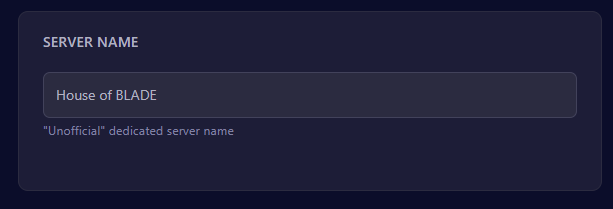
Copy/paste the full name exactly. Even one missing character can make it look like your server “doesn’t exist”.
Launch ARK: Survival Ascended → click Join Game → switch to UNOFFICIAL.
If you’re on Official, you will never find your server.

Paste the exact name you copied from Startup into the search bar. We recommend pasting instead of typing to avoid mistakes.
What to search:
✅ Full Server Name from Startup
❌ IP address
❌ Panel dashboard label
On the server browser screen, enable these checkboxes:

After that, your server should appear in the list. If it still doesn’t, wait 2–5 minutes after startup and try again.
If your server still doesn’t show up, contact us via live chat, email, or Discord and we’ll help you quickly.
Deploy an ARK: Survival Ascended server in minutes with NVMe storage, low-latency regions, and powerful RAM: ARK Survival Ascended Hosting.