
txAdmin is the fastest way to get a FiveM server online because it handles the server recipe deployment, configuration, and basic admin setup in one place. This guide follows the exact steps we send to customers, including the common “it won’t connect” fixes (ports + server.cfg).
Start your server → open the txAdmin URL (from console) → enter the PIN → deploy a recipe → then edit txData/serverfolder/server.cfg and change ports from 30120 to your main server port. Restart and connect using IP:PORT.
In the SkailarHost panel, start your FiveM server and wait for it to fully boot. If it’s installing, updating, or still starting, txAdmin might not be reachable yet.
Quick check:
In your server console/log output, FiveM prints a message with a URL to access txAdmin plus a registration PIN. Open that link in your browser and use the PIN to register.
Important: The txAdmin URL is usually http://YOUR_PUBLIC_IP:PORT. This is not the same thing as your FiveM “connect” endpoint - txAdmin runs on its own web port.
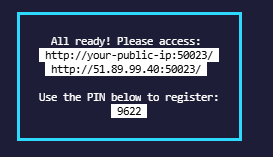
If the page won’t open, it’s almost always a wrong port or the port isn’t allocated. Double-check the port shown in the console and compare it with your panel allocations.
Your players will connect to your FiveM server using your public IP and your main game port (example: 51.89.99.4:50011).
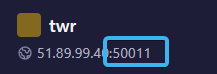
What this means:
✅ Players connect to IP:MAIN_PORT
✅ txAdmin uses its own web port (shown in console)
❌ Don’t assume everything is on 30120
FiveM needs network access properly configured. In your server configuration, make sure your main game port is added for TCP and UDP.

In txAdmin, go through the initial wizard and choose a recipe (popular choices include “CFX Default Base” or similar). txAdmin will deploy files, set up folders, and prepare the server structure.
The first deploy can take a bit longer - let it finish fully before restarting or editing config files.
After the recipe is deployed, you must ensure your config is using your actual main server port (the one from your panel endpoint, e.g. 50011), not the default 30120.
Do this exactly:
txData/serverfolder/server.cfg3012030120 with your main server port (example: 50011)If your server.cfg is still on 30120 but your actual allocated port is different, players won’t connect properly and the server may not list correctly.
After restart, connect using your endpoint:
IP:PORT (example: 51.89.99.4:50011).
What “good” looks like:
server.cfg is using your main port (not 30120).If you’re stuck, contact us via live chat, email, or Discord and we’ll help you get online quickly.
Deploy a FiveM server in minutes with NVMe storage, powerful CPUs, and fast regions: FiveM Server Hosting.