Installing modpacks on SkailarHost is built into the panel: you choose a pack, select a version (Forge/Fabric/etc.), and the panel installs the correct server files for you. This guide shows the fastest “clean install” method and the most common fixes if the pack won’t boot.
Stop your server → open Modpacks → select a pack + version → enable Delete existing files for a clean install → click Install Modpack → start server and wait for the first boot.
If your server is currently running, stop it before installing a modpack. This prevents file locks and avoids partial overwrites during installation.
Quick checklist:
In your server’s left sidebar, go to Management → Modpacks. This is where you can browse and install supported packs directly from the panel.
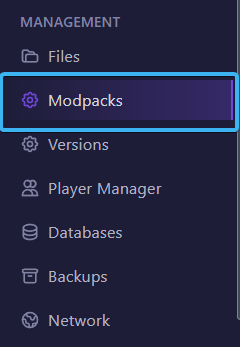
Many packs have multiple variants (Forge vs Fabric). Always match the version shown in the modpack selection dropdown to what you want players to run.
Click a modpack (example: “Cobblemon Adventure”), then use the version dropdown to choose the pack version you want. The panel will install the correct server files for that exact release.
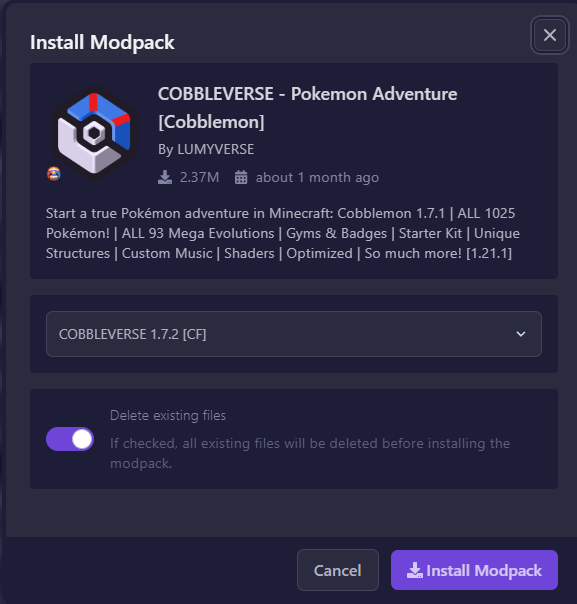
You’ll see a toggle like Delete existing files. This controls whether the panel wipes your current server directory before installing the pack.
What to choose:
If you enable deletion, your current world can be removed. Take a Backup first if you want to keep it (Backups → Create Backup).
Click Install Modpack. The panel will download files, configure the loader, and prepare the server directory. Don’t restart mid-install.
What “normal” looks like:
Start your server and watch the console. On first launch, many packs generate configs, download dependencies, or create initial world data.
If it looks “stuck” but memory/CPU is moving, wait a bit. Modpacks can take longer than vanilla Minecraft on first start.
If you picked a Fabric pack but your server is running a Forge setup (or the opposite), it may crash instantly. Fix it by reinstalling the modpack and selecting the correct pack version/loader in the dropdown.
Bigger packs need more memory. Symptoms include crash loops, “GC overhead,” or “OutOfMemoryError”. Increase RAM directly from your client area or use a lighter modpack.
Most often it’s one of these: Java version mismatch, pack requires a newer Minecraft version, or a corrupted install. Try a clean reinstall with Delete existing files enabled (after making a backup).
Players must use the exact same modpack version as the server. Share the modpack name + version with your players, and avoid mixing “extra mods” unless everyone has them.
If the console shows an error you don’t understand, send us the last ~30 lines and we’ll tell you exactly what to change (loader, Java, RAM, or a reinstall).
Run modpacks smoothly with fast CPUs + NVMe storage: Minecraft Server Hosting.